Wednesday, November 6, 2013

November Newsletter


November PCSC Technology Integration Newsletter

This picture was shared with me by Dee Laswell and it really hit home.  There are so many programs out there for us to use, but do we really use them?  We share many different resources and it can be overwhelming, but we do not expect people to use each of these tools!  Find the tools that seem interesting to you and your students, then use them.  It’s just like when you get a new textbook series.  The amount of materials that are given is scary.  How could someone ever use all of these tools?  Most would just use what they felt comfortable with and add more resources as needed.  Treat all of the technology tools the same way.  Pick out some of the technology resources that are fit your class and use them well, then you can add little by little.


Tech suggestions for November
1. Animoto - http://animoto.com/education/classroom  Presented by Lori Smith, PCMS
My Language Arts Applications classes just finished a unit on advertising, in which students had to design their own cereal using pathos, ethos, and logos.  For the culminating project, they used animoto.com to create a commercial for their cereal.  This site was user-friendly and quick; their commercials were completed within two class periods. We then viewed them together in class and discussed their various attributes. My blog is at www.smithlandofenglish.blogspot.com and the projects are available for viewing there.

The link at the top is to the education part of Animoto.  As a teacher you can apply to get a free account. You can also check out examples of what others have done on Animoto to get some starter ideas.

2.  Google Drive - www.google.com  (If you are interested in using any of the pieces below, contact Phil Clauss so he can get and your students signed up.)
If you want your students to be able to collaborate with each other while not sitting with each other, be able to share documents with the teacher, or be able to access their files from anywhere with an internet connection. Let Phil or Beth know and we will make sure you and your students have accounts so you can begin.  We would love to work with anyone on ways to begin using some of these Google tools. Below are some ways that our teachers have been using some of these Google tools.

I like for my 2nd graders to use Google Docs for several different reasons.  My students are currently composing a narrative in Google Docs.  I taught my students how to share their documents with me and I was able to login to Google at home and edit their narratives.  I really like that I can highlight text and add notes to my students about their documents. This allows me to conference with them without taking the time during the day to talk to each student individually.  Google Docs is very user-friendly and it is wonderful that it auto-saves...no more lost work!  In the past I have used Google Docs in partner work.  A couple of years ago our epals in New York worked on an Earth Day project and added to/edited the same document so that we had a collaborative final piece.  -Terra Knust, Otwell

Using Google Docs, my English 11 students collaborated to write stories. Each student started a story with one sentence, then moved from computer to computer, adding one sentence to each story. Near the end of the period, after moving back to their own computers, the students then had to correct any errors in their stories, write an ending, and verbally share them with the class. This is always a fun assignment, while students also learn the aspects of writing a short story and collaboration. - Alice Sims, PCHS

Google presentation is a lot like PowerPoint but simpler to use.  My 2nd graders this year have made a couple of different Google presentations.  The first presentation they made was on deserts.  They used information we’d learned in class along with online research through sites I posted on Bundlr and made a short presentation of about 4 slides.  They inserted clipart from Google images.  The second presentation was documenting the life cycle of a caterpillar that I brought to school.  This presentation was longer and took a couple weeks to complete.  My students inserted pictures of our caterpillar that I posted to our blog.  These projects were great practice for writing complete sentences, using capitals, endmarks, correct grammar, and spelling.  The students enjoyed working on these and especially had fun adding slide transitions and animations.  Both presentations were posted online for parents to view. - Terra Knust

I have started using Google Forms for quizzes and tests.  Overall, my students really like it.  And of course, I do as well because it does the grading for me.  I have a lot more to learn, but it works for me right now!
 - Kyle Brames, PCHS

3. Pinterest - www.pinterest.com  Presented by Beth Bohnert
With the holidays approaching many of us will be looking to Pinterest for ideas, but Pinterest is also an excellent resource for teaching ideas. Pinterest allows you to “pin” ideas onto virtual bulletin boards and has a variety of material available.  Check out our corporation Pinterest boards for various subjects and teaching resources. If you have items you would like to share on our Pinterest boards, let us know and we will be happy to allow you access to become a guest pinner. http://www.pinterest.com/pcedlinks/

4. Thinglink - www.thinlink.com

Making Pictures Come To Life
By:  Lori Richardson

Welcome to the next generation of interactive pictures.  At thinglink.com, you can add custom hotlinks to any picture to create a fun, interactive experience.  There are tons of possibilities and uses for your classroom.

Check out this quick example I made for you:  http://bit.ly/17BuGbi

You can create thinglinks for your students as review tools or have your students create one for you over any topic!  No classroom computers, no problem.  You can visit one of our school’s wonderful computer labs or project your thinglink on your overhead projector and hover over the links for your students see. 

There are many benefits to using the website.  For instance, the images embed nicely into Moodle, websites, or blogs.  If stats are your thing, the site also offers you some basic stats where you can check how many views and embeds your image has received.  Or if you need ideas, you can browse and use the many already created thinglinks.

Need more convincing to give it a try?  Well, you can download the thinglink app for free from itunes.  Or you can follow them on Twitter @thinglink.  As an educator, you and your students can take advantage of the free education upgrade at:  http://www.thinglink.com/action/store/education

So head over to Thinglink.com today, sign up for your free account and start creating images that inspire and engage your students.


6. Facebook Following
A lot of our staff are Facebook users and spend time checking out what your friends are doing. There are also a lot of pages on Facebook that are beneficial to teachers.  Here are just a few.  If you have any others that you would recommend, please share with everyone.
            Encouraging Teachers - I love this one.  Teachers can ask anything and get tons of help.  Instead
of just asking a few people you know, liking this page will allow you to ask thousands of other                                               
teachers the same question. You will also be able to help others with their questions.
            Scholastic Teachers - Resources shared and ideas that are also available on their website.
            Teaching Resources - Lots of ideas shared.
            SimpleK12 - I just started following them, but I have loved the resources I get from their website. 

Teacher Spotlight for the Month - Lori Smith
Lori Smith is our spotlight teacher of the month.  Her use of Animoto in the class was a big hit by her students.  Some of her classes also took the challenge of writing their thoughts about the the “Day Made of Glass” Youtube video.  Feel free to follow her blog and keep updated with what is going on in her class. Keep up the good work.

Student Spotlight of the Month - Bailey White
Bailey White is our spotlight student of the month. Bailey recently completed a web page project for the Pike County Public Library’s Zombie Run.  Bailey used Weebly to create his site and worked with Mrs. Oldenkamp, the librarian, to obtain insight into what she wanted on the webpage.  When finished, Mrs. Oldenkamp was kind enough to write the following, “He (Bailey) was really good about asking me specific questions such as if kids or dogs were allowed. Asked a lot about the set-up, how I’d like the layout of the site, what sort of information I would want. He did some high caliber work, and I was very happy with the outcome. The graphics and font types were especially great.”  You may view Bailey’s zombie webpage at http://pczombierun.weebly.com. If you see Bailey, tell him congratulations on a job well done!


Follow Pike Central High School on Twitter @pchschargers


Follow Pike County School Corporation on Facebook
Friday, October 4, 2013

Cool Tools 

1. Class Dojo - www.classdojo.com
Check this site out! It is used to keep track of classroom management. Although it looks childish, there are lots of middle and high school teachers that use it. There are plenty of stories on the website of how teachers have utilized the program. Below is a link of a video I created of how to set-up and use Class Dojo. There are also lots of materials at the site and videos on YouTube as well. If you are interested in using Class Dojo but need help please let me know.


Here are a few quotes from Tonya Walton (4th grade teacher, Petersburg Elementary) who has been using Class Dojo:
-“We are using ClassDoJo for behavior. It has several features that I have enjoyed (the class too!). They each have an account and I can track positive behaviors and negative ones. They earn points or I can take them away.”
-”On the website version I can print reports and enter parent email addresses. It automatically emails the parents the report for their child at the end of the week! I love that feature!”


2. Padlet - padlet.com (Written by Lori Richardson, PCHS Teacher)
Virtual Post-Its
I Love Post-its! Not only do they help keep me organized, but I use them with my students in class as well. Post-its are nice, but today’s students want to be more interactive and have instant access to information. So here is an alternative: Padlet.com.
Padlet creates an online virtual wall, where students can use virtual Post-its to collaborate ideas. Since I create and administer the wall, I can organize and monitor the comments that are posted on the wall. And the kids love it. Students who are normally quiet in class, find their voice and communicate their thoughts with their other classmates.
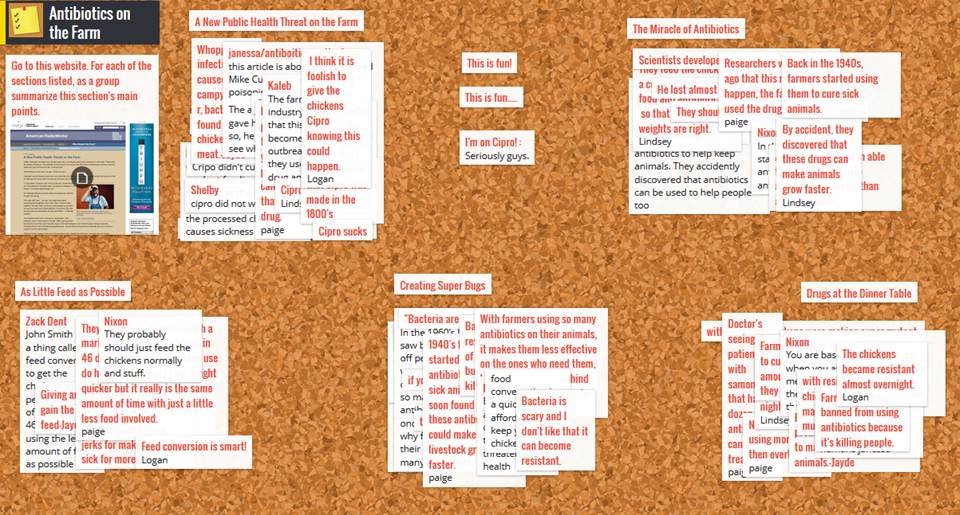
But it is NOT just virtual communication. Recently, I created a Padlet wall for my Medical Interventions class (Juniors and Seniors). Take a look(It is hard to read but a link is provided later.):
In the upper left hand corner, I posted an article that I wanted them to read. Then I posted the five main ideas from the article. The students had to comment about each of those five topics. As they were posting the notes, they were talking with each other about the comments being posted. “Great idea”, “I didn’t even think about that”, “where did you find that information” were just a few of the comments I heard.
If you would like to see their comments up close and personal, go to: http://padlet.com/wall/culbreath. You can hover over each of the comments and read what they said. I thought it was interesting that they would post on the wall how much fun they were having doing the wall.
So how easy is it to use? It takes just a few minutes to set up a wall and the site is very user friendly. Then, you give the students the link to join the wall and they simply double click on the wall and type. It is very secure as well. You can set the wall up to be very private where you invite people by email, private where only people with the link can comment and see the wall, or open to the public for everyone to see. You can also set it up where you can approve or delete any message before it goes on the wall.
If you are looking for a great interactive way to check for student understanding, Padlet may be the answer. Even if you do not have a computer for every student this activity can be done in one of the labs, or a teacher lead activity that is projected on a screen and the teacher adds the thoughts. Lots of options!


3. Go Noodle - www.gonoodle.com (Written by Terra Knust, 2nd grade teacher, Otwell)
My students love Go Noodle! Go Noodle is a great brain break site for elementary students. I use Go Noodle in the afternoon when my class has been working hard and needs a little bit of a break. Most of the activities are free. Your students can train and run with an olympic athlete or dance all kinds of dances with a silly chicken. Mega Math Marathon asks your students questions while they jog in place. You click if they answer correctly and then they sprint for a period of time. In Body Spell the teacher types in spelling words and the students form the letters with their bodies. Unlike other brain breaks, there is even a calming activity. The students breathe in and out as a bubble travels across the U.S. When the bubble reaches its destination your class gets a virtual postcard from the state you landed in. The postcard has interesting facts about that state. My students were so excited about seeing what state we’d landed in. Another great feature of Go Noodle is that you pick an avatar character for your class that grows as you complete activities. The students love to see him change!


NBC Learn is a video repository that is free for Indiana educators. The video choices on this site are outstanding. Ift is not just news videos, but an assortment of videos on different subjects and levels that can be used in the classroom. I highly recommend it!


Once you go to this site, first check out the videos on the right hand side. They are really helpful. After that just click on the NBC Learn K-12 link and then you will be able to sign up for an account. At that point just search the library. Some of the videos also have lesson plans. Check them out!


Since it is October, it is always great to have some Fall and Halloween activities. Check out the site above that was shared by Terra Knust.
Teacher/Student Spotlight
Logan Ferguson and Joseph Hetman recently took a project assigned by Mr. Stuckey and gave it a technological twist making them our Student Click of the Mouse winners for October. They took an old movie poster of To Kill a Mockingbird and updated it with the characters they felt could play the roles today. According to the new poster, Tommy Lee Jones would be the new Atticus Finch and Miley Cyrus would be the new Mayella Ewell. In addition, the two selected several others to play the updated roles. Joseph and Logan indicated that they considered character traits when selecting many of their new cast members. When asked what they learned, Joseph indicated that placing new heads on the existing poster was the most difficult, but he learned a lot during the process. Joseph is currently in Ms. Burns’ Digital Design class and is learning PhotoShop. While Logan is not in the Digital Design class, he also indicated that he learned a lot from the project. If you see these students, ask them about their posters and let them know they did a good job. Congratulations and a Click of the Mouse to Joseph and Logan on this award.


Facebook Recommendation - Encouraging Teachers
Many of our staff have their Facebook account. Whether you post status updates quite a bit or are a “Facebook stalker” (someone who views but rarely post) there is one page that you need to Like if you are a teacher. That Page is Encouraging Teachers. Whether you want to see the questions that other teachers are asking, contribute to the conversation, or ask questions of your own, this Page is very beneficial to teachers. Try it out today!


Follow Pike Central High School on Twitter @pchschargers


Follow Pike County School Corporation on Facebook

Tuesday, September 10, 2013

A master can tell you what he expects of you.
   A teacher, though, awakens your own expectations.
Patricia Neal
 
 
In an effort to share how technology is being integrated into our classrooms, we have redesigned our technology newsletter to showcase our teachers and students.  In our blog, you will find spotlight teachers and resources that others are finding useful in their classes.
        Spotlight Resources:

This month we thought we would revisit some resources available to our teachers in the corporation that are just too good not to mention.

BrainPop and BrainPop Jr. – Let Tim and Mobi explain topics to your class in just a little bit different format. BrainPop uses short videos with cartoon characters to explain a multitude of subjects. This site does require a login. If you don’t have it, please see your building tech or email one of us.   Grade level recommendation:  K-8


Learn 360 – Through streaming video, audio and accompanying support materials, Learn360 supports web-based learning by providing an online collaborative environment where users can share information and ideas 24 hours a day, 7 days a week. This site has excellent video and audio resources to enhance a variety of subjects. This site needs a login. If you do not have one, please email Mr. Clauss or Mrs. Bohnert. Grade level recommendation K-12.


Glogster – We are currently reviewing Glogster as a possible addition for our school. Glogster lets your students create virtual posters with text, photos, videos, graphics, sounds, drawings, data attachments and more.  There is also an excellent gallery of posters already created that teachers can incorporate into lessons.  This site requires a login and classes can be set up. Contact Mrs. Bohnert if you are interested in trying Gloster with your class. Grade level recommendation 2-12. There is a sample Glog created by one of Mrs. Richardson's students to the right.


Student Response Systems - Don’t forget our schools have access to the student response systems or “clickers.” Give a multiple choice, true false or short answer test and let the computer do the grading. For more information, contact Mrs. Bohnert.

Video Tutorials:

Mr. Clauss has created a video tutorial on using the Learning Connection to join communities and communicate with educators around the state.  The communities on the Learning Connection are expanding and we encourage you to see what others around the state are posting about their subjects. Click here to view the Learning Connection Tutorial.

          Trends, Topics and Things not to Miss,

As more educators are joining the social media frenzy, we wanted to share some educator’s names that we follow and recommend them to you. Our first spotlight is for Kevin Honeycutt’s Paper.li publication – Kevin Honeycutt’s Network:The Source that feeds my learning . Several of our educators have heard Mr. Honeycutt speak and he does a great job or reminding you why you wanted to teach in the first place.  This link will take you to a daily newspaper that he has put together based on certain search criteria.  Take a look. I’m sure you will find something fascinating to read.  If you like it, click subscribe and enter your email. You will get notifications when the newspaper has been updated. Feel free to create your own newspaper too.

            Kevin Honeycutt’s  Paper/li   
             Videos – Why is this technology stuff so important?
For this newsletter, we are sponsoring a writing contest. The winner will get their essay posted to our blog and their name mentioned on our Twitter .  We will have a winner for high school, middle school and elementary school.

            Share this video with your students and have them respond to the following question:

What part of the video do you find most intriguing and why?

After watching the video, how do you see this type of technology being integrated into schools and classrooms? 
Even if your students won’t participate in the writing contest, the video is still quite interesting to watch.

Access our Pike County Schools  on social media sites.  How to follow us:

               You can also follow our high school on Twitter @pchschargers.

               The school corporation has a Facebook page under Pike County School Corporation

 If anyone is interested in becoming a guest contributor to our newsletter, please let us know. We encourage everyone to share the amazing things they are doing in their classrooms. In addition, If you see a colleague is doing something click worthy, feel free to nominate teachers for our Click of the Mouse Awards.
 
                                                                               Logging off for now,

                                                                              Mr. Clauss and Mrs. Bohnert


Wednesday, August 7, 2013

Welcome Back Teachers

 
It is an exciting time to be a learner.  We hope you find our new technology tips blog useful. This year, we will be posting our newsletters full of great tech tips and websites along with spotlight sections on how our teachers and students are using technology in the classrooms.  If you know of anyone worthy of a spotlight or any great websites, please keep us posted. We would love to hear all of the wonderful things you are doing with your students.

Have a great start to the school year.

Wednesday, February 2, 2011

Why should we incorporate Facebook into education?